
Access Int

Nexus Dashboard

Template-Based Interface Configuration

Apply interface templates across multiple switches from a centralized GUI—no SSH or manual CLI required.

Template Policies

Nexus Dashboard lets you create and modify interface configurations using template policies, just like using the command line but from a centralized interface.

Smart Filtering

Use the filter field by typing Interface, then ==, and the interface name (e.g., Ethernet1/5) with word completion to quickly locate interfaces.

Step 1 - Launch Edit Interface Wizard

From the Overview dashboard, you need to navigate to Interfaces to view all the interfaces Nexus Dashboard is aware of from your switches and begin your next task.
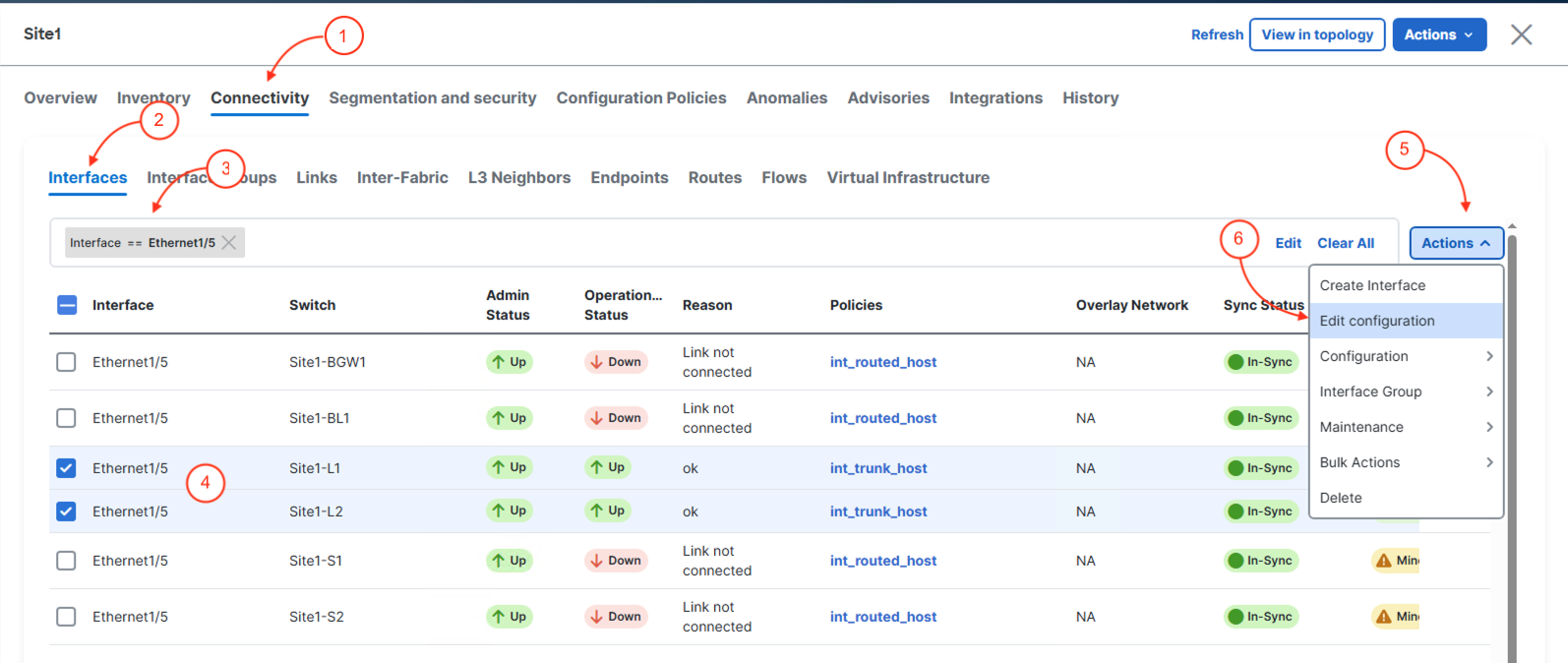
  1. Click Connectivity in the top navigation bar
  2. Click Interfaces
  3. There are a lot of interfaces present from all of your switches. The easiest method of locating what you are looking for is through the filter option described above. In the filter option box, type Interface == Ethernet1/5
  4. Locate Site1-L1 and Site1-L2, then check both switch's checkbox to select them
  5. On the right, click Actions
  6. Then click Edit

Step 2 - Launch Policy Edit Interface(s)

  1. Under Mode, change the mode to Access
  2. Click Save & Next at the bottom

Step 2 - Configure Interface on Site1-L2

Now we need to the same thing on the Site1-L2 switch.

  1. Under Mode, change the mode to Access
  2. Click Save & Next at the bottom

Step 3 - Deploy the New Configuration

Now we need to save and deploy the configuration.

  1. Click Deploy at the bottom


  2. Click Deploy Config at the bottom


Step 4 - Review Site1-L1 and Site1-L2 Ethernet1/5 Policy

Back at the main Interfaces overview, the filter for Ethernet1/5 should still be active. Locate the Ethernet1/5 interfaces for Site1-L1 and Site1-L2 and ensure the Policies column shows int_access_host



(C) Copyright 2026 Cisco Systems, Inc. and its affiliates. All rights reserved.