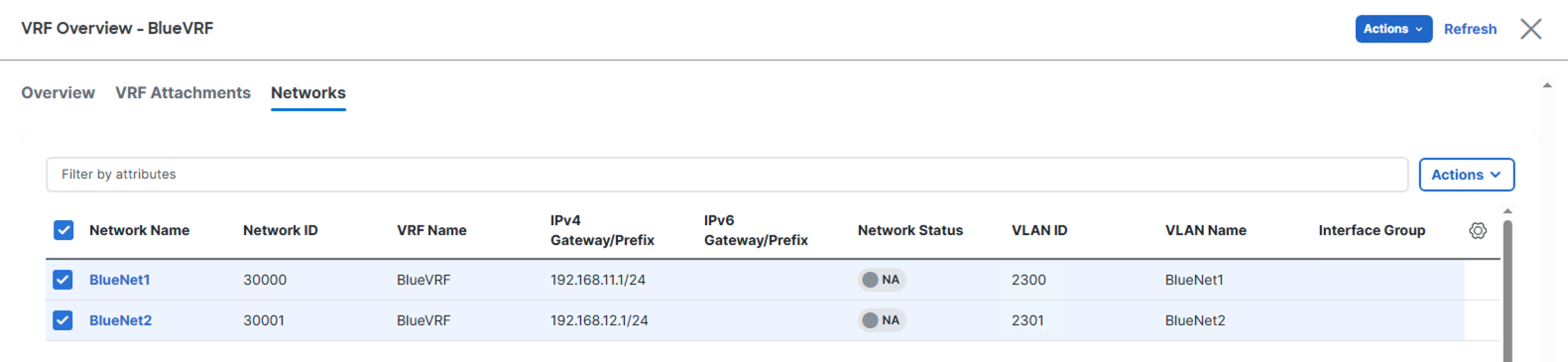
Define Layer 2 VNIs with VLAN mappings and configure Anycast Gateways for inter-VNI routing.
In Nexus Dashboard, "Networks" is where you define Layer-2 VNIs (L2VNIs) and associate them with VLANs to create Layer-2 segments (bridge domains) over your VXLAN fabric. L2VNIs keep traffic segmented, preventing Layer-2 traffic from crossing VNI boundaries.
If you need routing between different VNIs, you must associate the networks with a Layer-3 VNI (L3VNI) and a VRF. For routing, you can also configure an Anycast Gateway (SVI) so the same gateway IP exists on all necessary leaf switches.
In this lab, you'll define two networks for inter-VXLAN routing, associating them with the L3VNI VRF created earlier. Each network will have its own L2VNI and VLAN ID.
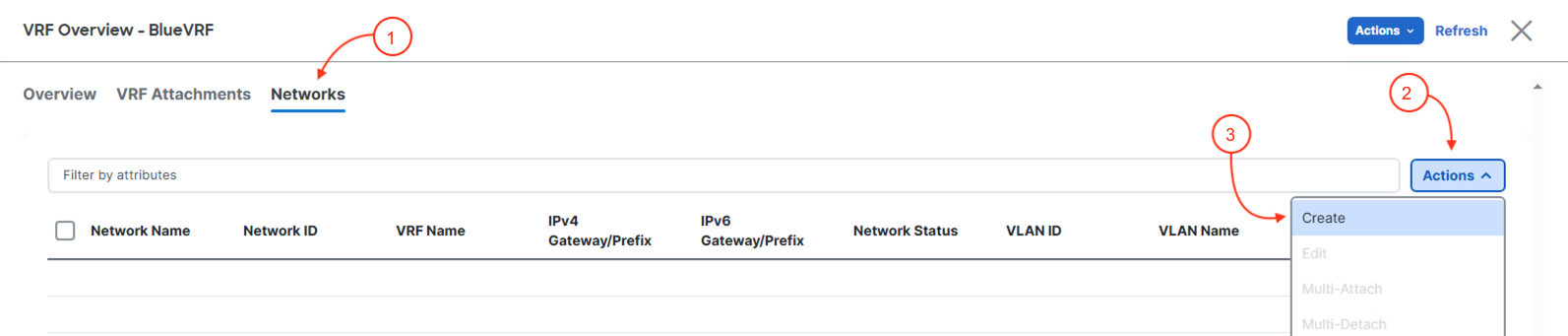
In the Create Network wizard, populate the parameters to build the network configuration for your first network:
Repeat the steps above to create a second Network (L2VNI) under Networks:
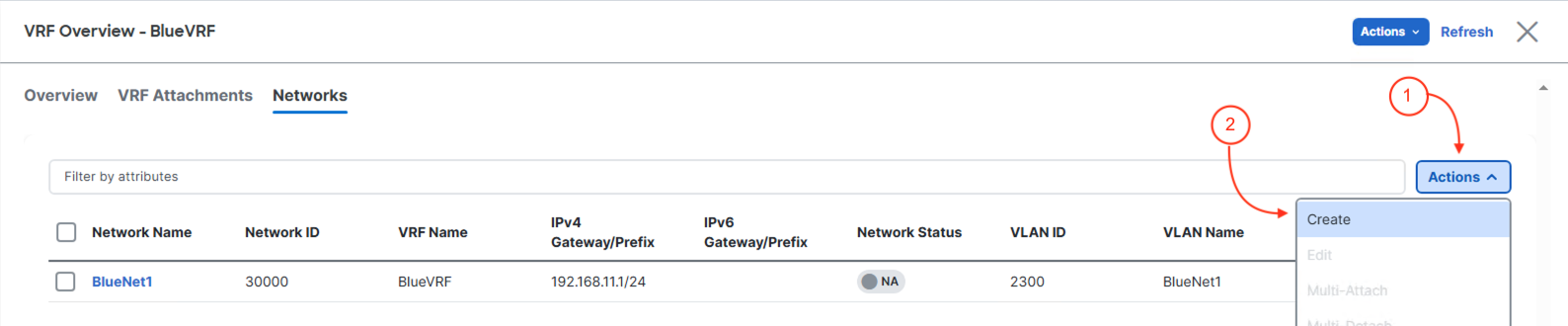
In the Create Network wizard, populate the parameters to build the network configuration for your first network:
Confirm the two Networks are created. The current status should display as NA as the Networks are not attached and deployed to a leaf switch yet.