Register site fabrics as MSD members for centralized overlay management.
Add your existing site fabrics (Site1 and Site2) as members of the MSD fabric. Member fabrics retain their local underlay management while overlay VRFs and networks are controlled at the MSD level.
This creates a hierarchical management model where underlay (fabric, switches, physical connectivity) is managed per-site, but overlay (VRFs, networks, tenants) is orchestrated centrally through the MSD fabric.
The next steps will guide you in adding your fabrics into your Multi-Cluster Fabric Group
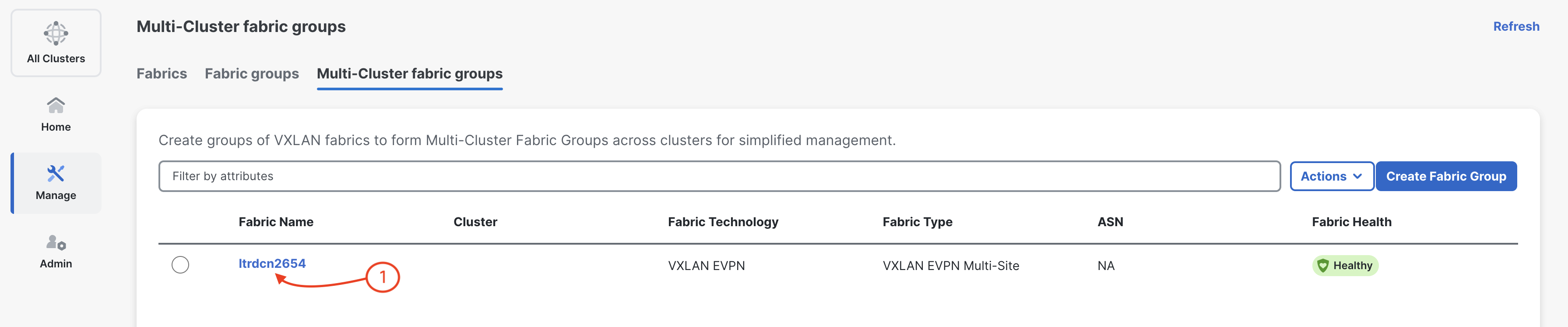
The second fabric you want to select and import is your Site2 fabric. Locate Site2 in the list of fabrics and notice the fabric list has shortened since Site1 was previously selected.
The last fabric you want to select and import is your ISN fabric. Locate ISN in the list of fabrics.
Ensure your Site1, Site2, and ISN fabrics are displayed under Child Fabrics.